How to Convert PDF Bank Statements to Excel for Bookkeeping
If you're trying to catch up on your bookkeeping, one of the first challenges is often getting your bank transactions into a format you can actually work with. Your bank may provide monthly statements as PDFs, but reviewing and categorizing hundreds of transactions across multiple statements isn't practical.
Converting those PDF statements into Excel can make the process easier. Instead of going through each statement individually, you can organize transactions into a spreadsheet, sort them by date, categorize expenses, and calculate totals for your bookkeeping or tax preparation.
There are several ways to do this, although the results can vary depending on the bank, the statement format, and the method you use.
Can You Convert a PDF Bank Statement to Excel?
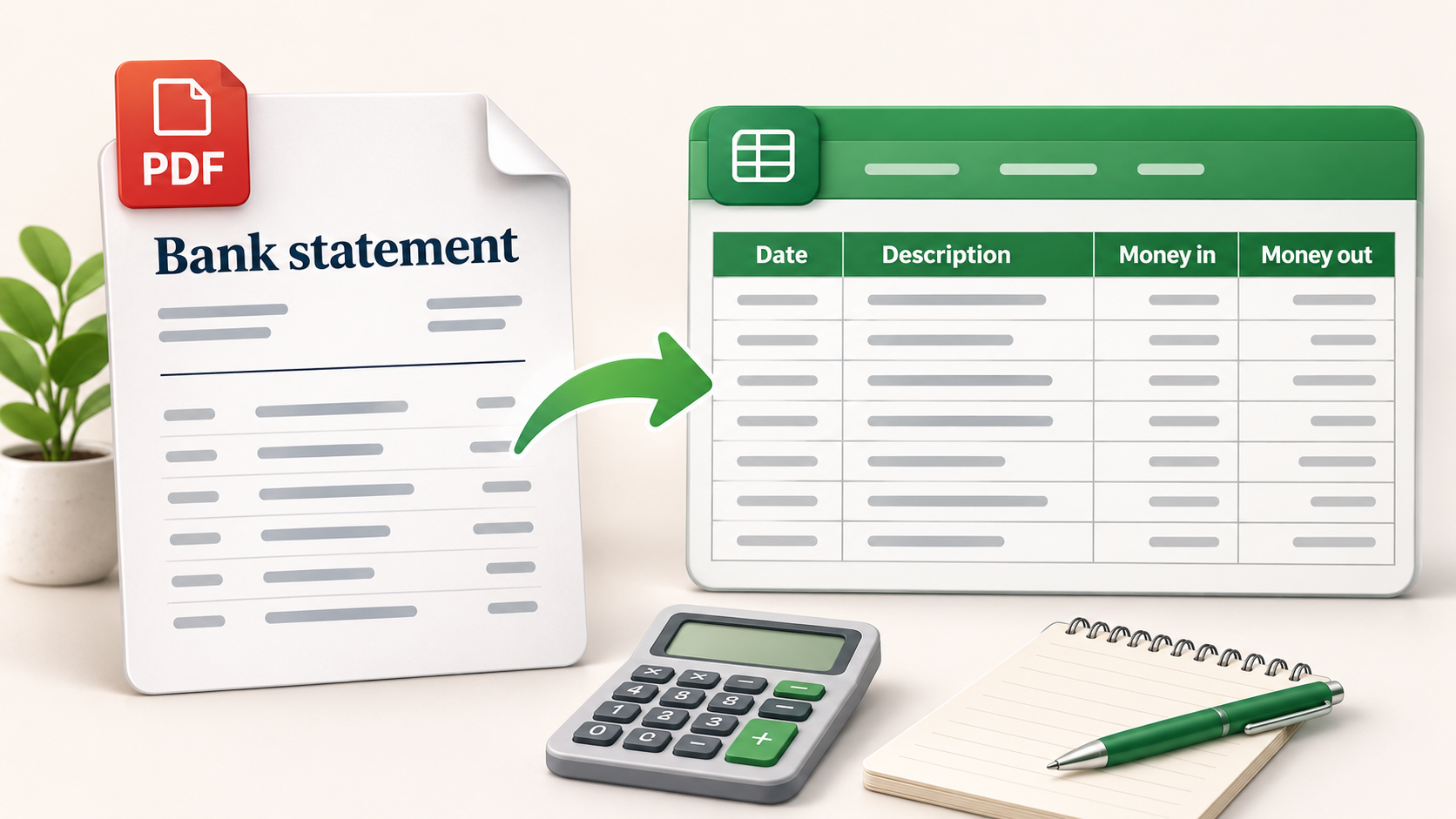
Yes. Most PDF bank statements can be converted into Excel, although some are easier to work with than others.
A PDF is designed to display information consistently, not necessarily to make that information easy to extract. When you open a bank statement, you might see neatly arranged columns for the transaction date, description, withdrawals, deposits, and running balance. However, the PDF doesn't always store that information in the same structured format you see on the page.
This is why simply copying and pasting transactions from a PDF into Excel doesn't always work well. Dates may end up in the wrong columns, descriptions may split across multiple rows, and withdrawals and deposits can become difficult to distinguish.
Statements containing selectable text are generally easier to convert than scanned documents. If your statement is a scanned image rather than a PDF containing selectable text, you'll need a conversion tool that supports optical character recognition (OCR). Even then, it's important to check the extracted amounts, dates, and transaction descriptions for errors.
The goal isn't simply to move the text into Excel. It's to produce a spreadsheet where each transaction has the correct date, description, and amount so the information can actually be used for bookkeeping.
Methods for Converting PDF Bank Statements to Excel
Before converting a PDF, it's worth checking whether your bank offers transaction downloads in CSV or Excel format. Many banks allow customers to export account activity directly from online banking, although the available date ranges may be limited.
If you can download a CSV file covering the period you need, that's often the easiest starting point. CSV files already contain structured data, which can be opened in Excel without extracting transactions from a PDF. Just make sure the downloaded activity covers the entire period and includes all the transactions you need.
If you only have PDF statements, another option is to use Excel's PDF import feature. If you're using a supported version of Excel for Windows, you can try importing your statement directly. Open Excel and select Data → Get Data → From File → From PDF. Choose your bank statement, and Excel will attempt to identify tables within the document. You can then select the transaction table and either load it into Excel or use Power Query to clean up the information before importing it.
This feature isn't available in every version of Excel, and the results depend on how your bank's statement is formatted. Bank statements frequently contain multiple tables, repeated headings, and descriptions that extend across several lines. You may need to clean up the results before the transactions are usable.
There are also dedicated PDF-to-Excel conversion tools that attempt to extract tables from documents. Some are designed specifically for bank statements, while others convert PDFs more generally. The quality of the results depends on how well the tool recognizes your bank's statement layout.
When using an online converter, consider the privacy and security of the financial information you're uploading. Bank statements contain sensitive account and transaction details, so it's worth reviewing how the service handles uploaded documents before using it.
Cleaning Up Your Excel Transactions
Once you've converted your statements, the next step is making sure the data is accurate. A spreadsheet that looks organized isn't necessarily correct, particularly if the conversion process has missed transactions or placed amounts in the wrong columns.
Start by checking that each transaction appears on its own row and that the dates, descriptions, and amounts have been captured correctly. Depending on how the original statement was formatted, withdrawals and deposits may appear in separate columns or as positive and negative amounts in one column. It's important to understand which format you're working with before calculating totals.
You should also watch for duplicate transactions. If statements overlap or you've combined downloaded bank activity with monthly PDF statements, you may have imported the same transactions more than once.
Once the transactions are imported, add up the deposits and withdrawals and compare the net movement against the difference between the statement's opening and closing balances. These amounts should agree. If they don't, you may have missing, duplicated, or incorrectly imported transactions. Even when the totals match, it's worth reviewing the individual transactions because errors can sometimes offset one another.
For bookkeeping purposes, you'll generally want a spreadsheet with consistent columns for the transaction date, description, amount, and expense or income category. For example:
| Date | Description | Amount | Category |
|---|---|---|---|
| Jan 5 | Client Payment | $1,500.00 | Business income |
| Jan 7 | Adobe Subscription | -$32.99 | Software |
| Jan 10 | Owner Withdrawal | -$500.00 | Personal withdrawal |
Once the information is organized, you can sort and filter transactions, identify business expenses, and summarize amounts by category. Remember that not every withdrawal is a deductible expense, as illustrated by the personal withdrawal in the example above.
Converting Statements Is Only Part of Bookkeeping
It's important to distinguish between converting bank statements into Excel and actually completing your bookkeeping (see How to Do Bookkeeping From Bank Statements).
A PDF converter may successfully extract every transaction from your statement, but it doesn't necessarily know how those transactions should be recorded.
For example, paying your credit card balance generally isn't a new business expense. The underlying business purchases need to be recorded separately, while any interest or fees may require their own treatment. If you're importing both your bank and credit card statements, counting the original purchases and the payment of the credit card balance as expenses would overstate your deductions.
Similarly, transfers between bank accounts, personal withdrawals, loan proceeds, and equipment purchases may all need to be handled differently from ordinary operating expenses.
This becomes particularly important when you're using the spreadsheet to prepare your business taxes. Simply adding up all the withdrawals from a business bank account won't give you an accurate total of deductible expenses.
You may also have business activity that doesn't appear on your bank statements, including cash transactions, business expenses paid personally, or unpaid invoices. Depending on your accounting method and tax obligations, those items may also need to be included in your records.
Using Heightly to Organize Bank Statements for Tax Preparation
For sole proprietors who are converting their bank statements specifically to prepare for tax season, extracting the transactions into Excel is often only the beginning. Once the data is available, someone still needs to go through the transactions and organize them into the appropriate income and expense categories.
This is one of the reasons we developed Heightly. Rather than requiring you to convert each statement into Excel and then manually categorize everything, Heightly allows you to upload supported PDF or CSV bank and credit card statements and organize the transactions for tax preparation.
Heightly suggests income and expense categories aligned with Schedule C in the United States or Form T2125 in Canada, allowing you to review the classifications before downloading your report. Transactions that may require additional attention are flagged for review, and the completed report is available in both Excel and PDF formats.
For a sole proprietor catching up on a year's worth of bookkeeping, this can reduce the amount of time spent moving transactions between files, organizing spreadsheets, and calculating category totals.
Heightly isn't a full accounting system and doesn't replace bank reconciliations, complete bookkeeping, or professional tax advice. You'll still need to review the information, identify missing transactions, and maintain supporting records. You'll also need to account for business transactions that don't appear on your statements, including cash income or business expenses paid from personal accounts. However, if your main objective is organizing bank and credit card activity for your annual tax return, it may be more practical than converting and categorizing each statement manually.
Should You Convert PDF Statements or Use Accounting Software?
That depends on what you're trying to accomplish. If you need ongoing bookkeeping, customer invoicing, bank reconciliations, and regular financial reports, accounting software such as QuickBooks or Xero may be a better fit. These programs often support importing bank transactions directly, which can eliminate the need to convert monthly PDF statements.
If you're catching up on bookkeeping for a previous year, however, you might not have access to historical bank feeds or structured transaction downloads. In that situation, PDF statements may be the most complete source of information available.
Converting those statements into Excel gives you a way to organize the transactions, but the method you choose should reflect what you need to do with the information afterward. If you only need the raw transaction data, a reliable PDF-to-Excel converter may be sufficient. If you're preparing business income and expenses for tax filing, you'll also need a method of categorizing and reviewing those transactions.
Final Thoughts
Converting PDF bank statements into Excel can be a useful first step when organizing your bookkeeping, particularly if you're working with historical records or catching up on several months of transactions. The important part is making sure the converted information is accurate and that you understand how to handle the transactions once they're in a spreadsheet.
For businesses with straightforward finances, Excel may be enough to maintain organized records (see Can I Use Excel for Sole Proprietor Bookkeeping?). Others may benefit from accounting software or professional bookkeeping support, especially where financial reporting and reconciliations are needed throughout the year.
If you're a sole proprietor primarily looking to organize your business bank and credit card statements for tax preparation, Heightly can help turn those statements into a categorized Tax Prep Report in Excel and PDF without requiring an ongoing accounting software subscription.
Heightly currently supports eligible sole proprietors in Canada (excluding Quebec) and the United States. It is a tax preparation organization tool, not a complete bookkeeping system or a replacement for professional accounting or tax advice.
Note for Quebec residents: The Service is not available to Quebec residents. See heightly.ai/app/quebec-not-supported for details.
This article is for general informational purposes only and is not tax, legal, or accounting advice. Rules vary by province, state, and business type, and change often — confirm details with a qualified tax professional (or the CRA / IRS directly) before filing. Heightly is software, not a tax filing service.
Turn your bank statements into a Tax Prep Report
Try Heightly free — turn your bank statements into a tax prep report in minutes.
Get started free →