Can I Use Excel for Sole Proprietor Bookkeeping?
Yes. You can use Excel for sole proprietor bookkeeping if your business is relatively simple and the workbook captures all income and expenses, preserves transaction detail, and is reconciled to your bank and credit card statements.
Tax authorities generally do not require sole proprietors to use a particular accounting software brand. They require records that clearly show the business activity and support the amounts reported on the tax return.
Excel can meet that need. But a spreadsheet is only as reliable as the system behind it. A list of estimated annual totals is not the same as complete bookkeeping.
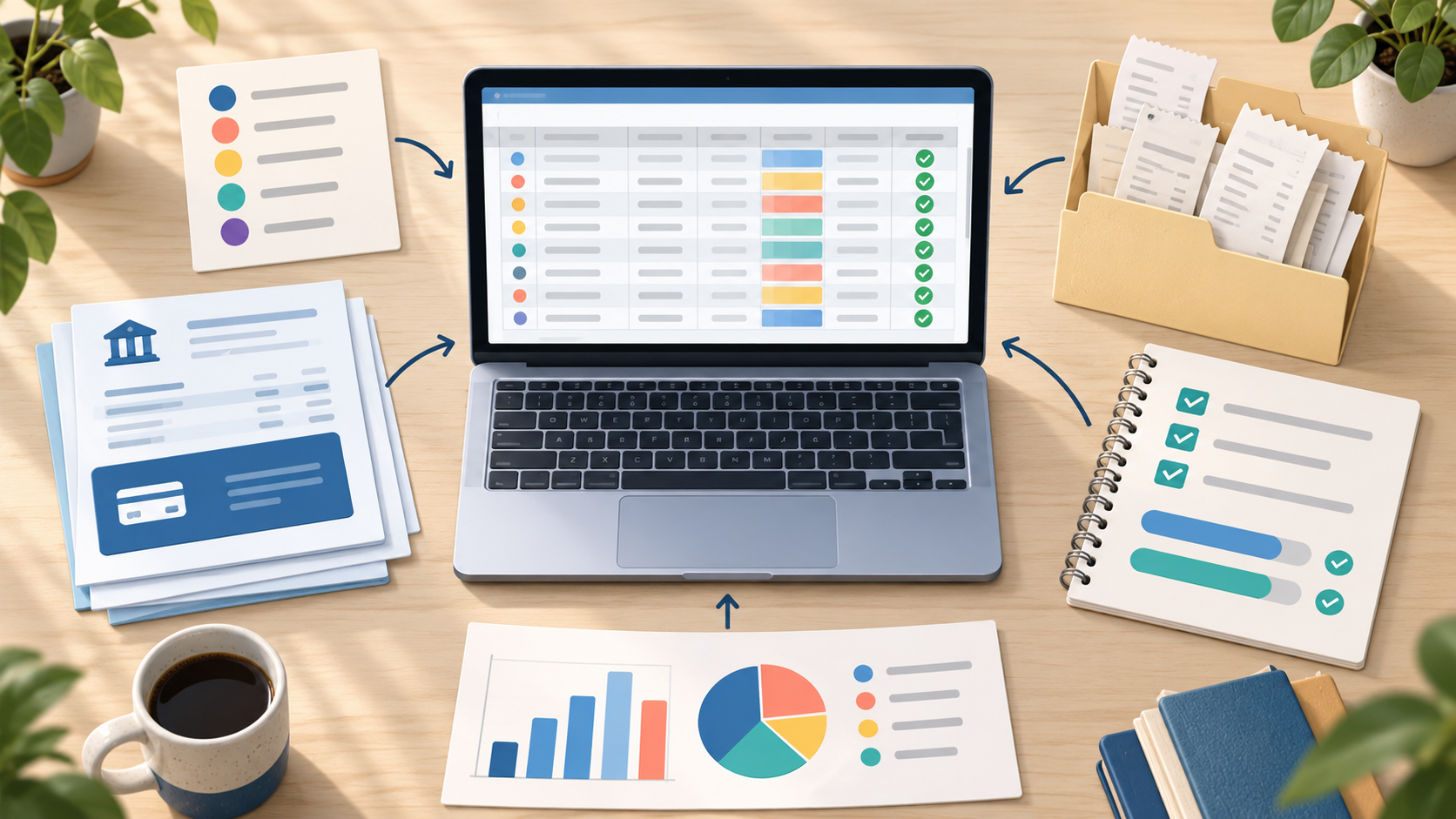
The short answer: Excel works if you meet these six conditions
Excel may be sufficient when:
- The business is straightforward. You do not have complicated inventory, payroll, unpaid invoices, bills, loans, or multiple currencies.
- Every financial source is included. The workbook covers all bank accounts, credit cards, cash, payment processors, and business costs paid personally.
- Each transaction remains visible. Annual totals can be traced back to individual entries and supporting documents.
- The categories are consistent. Similar transactions are treated the same way throughout the year.
- The workbook is reconciled. The recorded activity is compared with independent financial statements.
- The records are supported and backed up. You retain receipts, invoices, statements, notes, and secure copies of the workbook.
If one of these conditions is missing, the problem is not necessarily Excel. The bookkeeping process itself may be incomplete.
What Excel bookkeeping should include
A useful sole proprietor workbook should have more than one sheet and more than a total for each tax category.
1. Instructions and category list
Include a simple setup sheet explaining:
- the period covered
- which financial accounts are included
- whether amounts are recorded using the method required for your business and tax reporting
- the categories used
- how refunds, transfers, and mixed-use costs are handled
- who maintains the workbook
- the date of the last review
This makes the file easier to understand later and reduces inconsistent treatment.
2. Master transaction list
Use one detailed table as the authoritative record. Recommended columns include:
| Column | What it records |
|---|---|
| Date | Transaction date |
| Account | Bank, credit card, cash, or personal funds |
| Original description | Wording from the statement or source record |
| Clear description | Vendor, customer, or explanation |
| Money in | Deposits and other incoming amounts |
| Money out | Payments and other outgoing amounts |
| Category | Income or expense category |
| Business-use percentage | Business portion of a mixed transaction |
| Business amount | Amount included in the business records |
| Tax | GST/HST or other sales-tax information, when relevant |
| Notes | Business purpose, project, transfer details, or question |
| Document reference | Receipt, invoice, statement, or filename |
| Review status | Reviewed, missing document, or unresolved |
Keep the original statement description even when you add a clearer explanation. It helps preserve the connection between the workbook and the source record.
3. Reconciliation sheet
For each account and statement period, record:
- opening balance
- total money in
- total money out
- calculated closing balance
- statement closing balance
- unexplained difference
- review date
A reconciliation sheet forces you to test whether the workbook is complete. Without it, a polished spreadsheet may still omit an entire month, account, or group of transactions.
4. Annual summary
Summarize income and expenses by category using formulas, tables, or pivot tables. The summary should update from the master transaction list rather than being typed separately.
The annual report may include:
- income by type
- expenses by category
- business-use adjustments
- sales-tax information, if applicable
- equipment and other larger purchases requiring review
- unresolved items
5. Questions and year-end items
Maintain a separate list for transactions that need a decision. Examples include:
- unexplained deposits
- equipment purchases
- loan payments
- mixed personal and business costs
- missing receipts
- refunds without an identified original purchase
- unusual payments to or from the owner
Do not bury these items in a permanent “miscellaneous” category.
How to set up Excel for sole proprietor bookkeeping
Step 1: Use separate business accounts
A dedicated business bank account and credit card make the workbook easier to maintain. They provide a defined population of transactions to import and review.
If you used a personal account, identify and add the business transactions from that account. Going forward, separate the activity rather than excluding valid business costs.
Step 2: Import transactions from every source
Download CSV files when available and copy the data into the master table. If you use PDF statements, convert or enter the transactions carefully.
Include all relevant sources:
- bank and credit card accounts
- payment processors
- cash activity
- business purchases paid personally
- refunds and chargebacks
- fees deducted before deposits
Standardize dates and signs before categorizing the activity.
Step 3: Identify transfers first
Mark transfers between your own accounts before classifying income or expenses.
A credit card payment is usually a transfer: the individual card purchases are the expenses. Recording both the purchases and the payment duplicates the spending.
Other transfers may include money moved to savings, funds contributed by the owner, withdrawals for personal use, and payments against loan principal.
Step 4: Separate business and personal transactions
Classify each transaction as business, personal, mixed-use, transfer, or unclear.
Do not assume that everything paid through a business account is deductible. Do not omit a valid business expense merely because it was paid personally.
For mixed-use costs, retain the calculation supporting the business percentage. The appropriate method depends on the expense and applicable tax rules.
Step 5: Categorize consistently
Use a controlled category list instead of typing a new description for every row. Data-validation drop-downs can help prevent several variations of the same category.
Avoid forcing larger purchases, loan payments, owner transactions, and unclear items into ordinary expense categories simply to finish the file.
Step 6: Attach or reference the supporting documents
Excel does not replace receipts or invoices. Add a filename or link for each supporting document and keep the files in an organized folder.
Bank statements prove that money moved, but they may not show what was purchased or why it was business-related. Add notes for travel, meals, mixed-use expenses, and unusual vendors.
Step 7: Reconcile monthly
Compare the workbook with each bank and credit card statement. Check for:
- missing transactions
- duplicate imports
- credit card payments recorded as expenses
- transfers recorded as revenue
- refunds with the wrong sign
- personally paid business costs that were omitted
- missing statement periods
- formulas that do not include the newest rows
Resolve the difference rather than adjusting the spreadsheet to make it disappear.
Step 8: Review and lock the period
Once a month is complete, save a dated backup or use controlled cloud versioning. Protect formula and summary cells where practical.
If you change a prior-period transaction, add a note explaining what changed and why. Excel does not automatically provide the same accounting audit trail as a purpose-built bookkeeping system.
A simple monthly Excel workflow
| Timing | Task |
|---|---|
| During the month | Save receipts and add business-purpose notes |
| Weekly | Add cash and personally paid expenses; review unclear items |
| Month-end | Import bank and credit card activity |
| Month-end | Match transfers and categorize transactions |
| Month-end | Reconcile every account to its statement |
| After review | Update the summary and save a controlled backup |
This routine matters more than building a visually elaborate dashboard. A simple workbook maintained consistently is more useful than a sophisticated template ignored for eleven months.
Common Excel bookkeeping mistakes
Recording only expenses
Bookkeeping should capture the complete business, including income. An expense-only worksheet cannot confirm whether deposits, processor fees, refunds, or transfers were handled correctly.
Entering category totals instead of transactions
Annual totals do not create a clear audit trail. Retain the individual entries so each total can be explained and supported.
Treating credit card payments as expenses
Record the individual card purchases. Treat the payment from the bank account to the card as a transfer to avoid duplicating expenses.
Ignoring gross sales
Payment processors may deposit sales after deducting fees, refunds, or chargebacks. Recording only the net deposit can understate both income and expenses.
Forgetting off-bank transactions
Add cash income, cash purchases, business expenses paid personally, mileage information, and any other relevant activity that does not appear in the imported accounts.
Breaking formulas
Use Excel tables or formulas that expand with new rows. Test summary totals after adding transactions and protect formula cells where practical.
Keeping several competing versions
Maintain one authoritative workbook. Use clear filenames, controlled access, and backups rather than emailing revised copies between several people.
When Excel is a good fit
Excel is often suitable for a sole proprietor who:
- has one or two business financial accounts
- has a manageable number of transactions
- is paid promptly by customers
- does not carry inventory
- has no employees
- has straightforward expenses
- mainly needs an annual tax summary
- is comfortable maintaining and reviewing spreadsheets
The workbook can be particularly effective when business and personal finances are already separate.
When Excel is no longer enough
Consider accounting software or a professional bookkeeper when you need to manage:
- frequent customer invoices and unpaid balances
- supplier bills and payment due dates
- inventory or cost of goods sold
- employees and payroll liabilities
- several loans or financing arrangements
- multiple currencies
- sales taxes or GST/HST across more complex activity
- customer deposits or deferred revenue
- detailed financial statements during the year
- collaboration among several users
- a high volume of transactions
Also reconsider Excel when the workbook no longer reconciles easily, the formulas are fragile, or bookkeeping is consuming too much owner time.
For a direct product comparison, see Excel vs QuickBooks for Sole Proprietor Bookkeeping.
Can Excel prepare your tax return?
Excel can organize the information needed for a return, but it does not file the return or determine the correct tax treatment.
Your spreadsheet may summarize income and expenses, but transactions such as equipment, vehicles, home-office costs, mixed-use expenses, and loan payments may require additional calculations or professional judgment.
Ask your accountant or tax preparer what detail they require. They may need the complete transaction list, statements, supporting documents, equipment purchases, sales-tax information, and explanations for unusual items—not only the category totals.
Where Heightly fits
Heightly provides an alternative to manually building the annual transaction list in Excel.
It is designed for unincorporated sole proprietors and freelancers in Canada and the United States who need to organize a completed tax year from business bank or credit card statements.
You upload supported PDF or CSV statements, review suggested categories and possible tax lines, resolve unclear transactions, and download an Excel workbook and PDF report for your accountant or tax software. Each report covers one tax year and is purchased once.
Heightly works best when business and personal banking are separate. You must still add cash income, personally paid expenses, and other activity that does not appear in the uploaded accounts.
Heightly does not provide invoicing, payroll, inventory, tax filing, tax advice, or full financial statements. It does not calculate depreciation, capital cost allowance, or Section 179 deductions. Every report should be reviewed by you or a qualified tax professional before filing.
Frequently asked questions
Is Excel acceptable for business bookkeeping?
Yes, if it clearly records the business income and expenses, retains transaction detail, is supported by source documents, and can be reconciled to the financial accounts. The suitability of Excel depends on the complexity of the business and the quality of the process.
What columns should a bookkeeping spreadsheet have?
At minimum, include the date, account, original description, clear description, money in, money out, category, business-use percentage, business amount, notes, and a supporting-document reference.
Do I need separate worksheets for income and expenses?
Not necessarily. One master transaction table containing both money in and money out often makes transfers, refunds, account activity, and reconciliation easier to review. Separate summary sheets can report the results.
How often should I update the spreadsheet?
Capture receipts and important context immediately, review activity weekly, and reconcile accounts monthly. Waiting until tax season increases the risk of missing transactions and forgotten business purposes.
Can my accountant use my Excel bookkeeping?
Usually, provided it is complete and organized. Ask what format and supporting schedules are required. A clear workbook can reduce data-entry work, but your accountant may still need to review classifications and make year-end adjustments.
The bottom line
You can use Excel for sole proprietor bookkeeping. It works best when the business is simple, the finances are separate, and the owner maintains a complete transaction-level record.
The minimum standard is not a colourful spreadsheet. It is a workbook that includes every financial source, uses consistent categories, preserves supporting detail, reconciles to the statements, and produces a traceable annual summary.
If you need invoicing, inventory, payroll, liabilities, multi-user access, or ongoing financial statements, move to a fuller accounting system. If you mainly need to organize a completed year from business statements, an annual tax-preparation tool can reduce the manual spreadsheet work.
Want an Excel report without manually entering a year of statement transactions? Try a free Heightly preview with one supported PDF or CSV statement. No payment details are required.
Sources
Microsoft Excel is a trademark of the Microsoft group of companies. Heightly is not affiliated with or endorsed by Microsoft.
Note for Quebec residents: The Service is not available to Quebec residents. See heightly.ai/app/quebec-not-supported for details.
This article is for general informational purposes only and is not tax, legal, or accounting advice. Rules vary by province, state, and business type, and change often — confirm details with a qualified tax professional (or the CRA / IRS directly) before filing. Heightly is software, not a tax filing service.
Turn your bank statements into a Tax Prep Report
Try Heightly free — turn your bank statements into a tax prep report in minutes.
Get started free →